---
title: "Set up a multi-agent workspace"
sidebarTitle: "Multi-agent setup"
description: "Build a two-project, three-group fleet through the UI: projects, groups, agents, layouts, and boot."
---
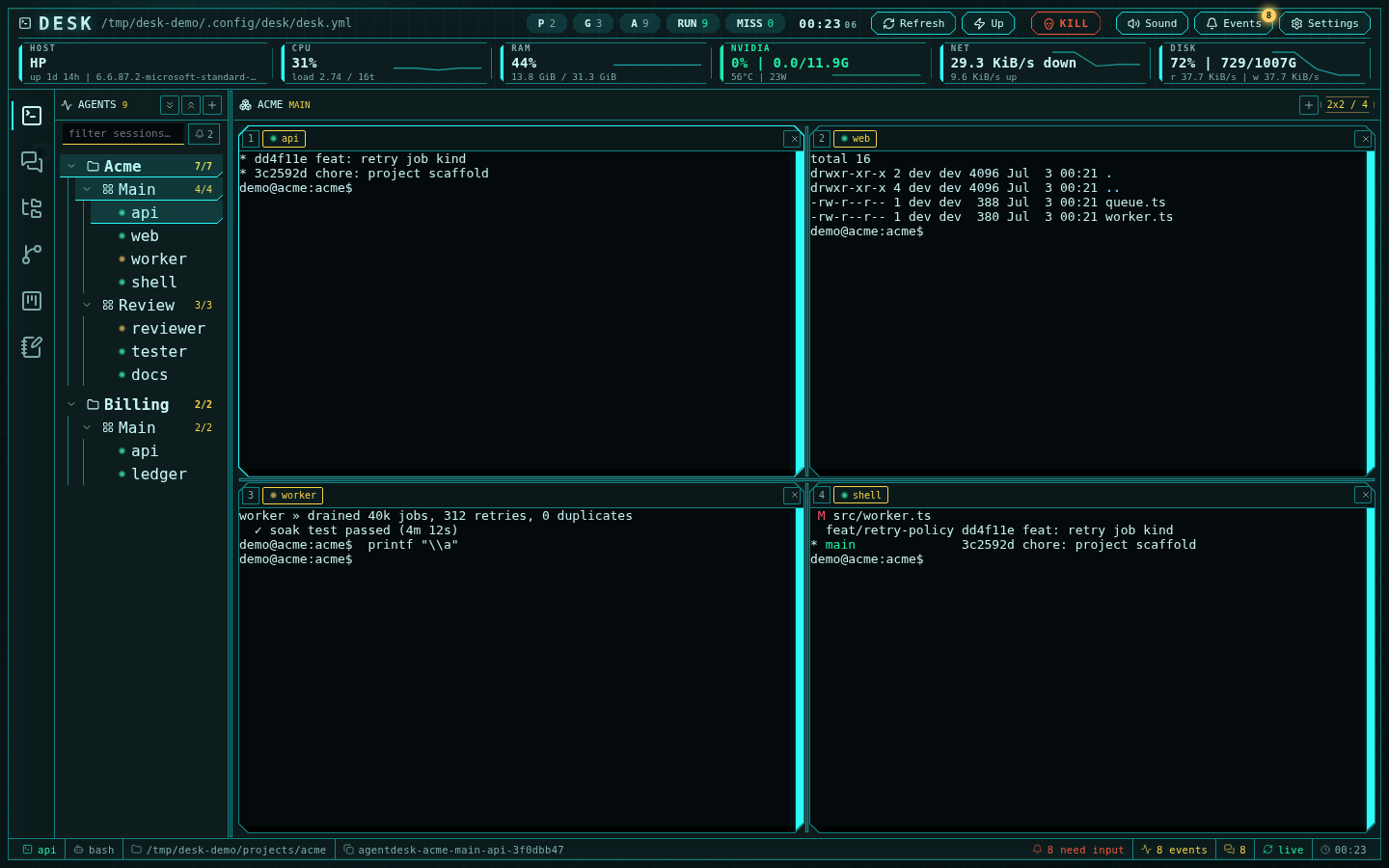
This guide builds a real multi-agent workspace entirely through the UI — two
projects, three groups with different layouts, and nine sessions — the shape
you see throughout these docs:
 Everything below can also be done by editing `~/.config/desk/desk.yml`
directly — the [configuration reference](/configuration) documents every key.
The UI writes the same manifest, atomically.
## 1. Create a project
A project gives Desk a named root directory that its groups and sessions
inherit. In the agents sidebar, use the **+** button in the header and choose
a project id, label, and working directory (for example `~/projects/acme`).
Repeat for a second project (`billing`) if you are following the full
scenario. Projects are the unit that the editor root, git discovery, and
channel handles organize around.
## 2. Add groups with layouts
Each project holds groups — one cell grid per group, where each cell is an agent chat or a terminal. Hover the project
row and click **Add group**. Pick the layout in the form:
- `2x2` for a four-agent working set — the default choice
- `linear` with 3 cells for a review lane you want side by side
- `custom` with up to 16 cells when the fixed grids do not fit
Layouts are not fixed after creation: the badge in the multiplexer header
switches kinds in place, the **+** and **−** controls add and remove cells,
and dragging the separators between cells persists your exact split
proportions per group. See
[Multi-agent layouts](/guide-multi-agent-layouts) for the full tour.
## 3. Add agent sessions
Hover a group row and click **Add session**:
Everything below can also be done by editing `~/.config/desk/desk.yml`
directly — the [configuration reference](/configuration) documents every key.
The UI writes the same manifest, atomically.
## 1. Create a project
A project gives Desk a named root directory that its groups and sessions
inherit. In the agents sidebar, use the **+** button in the header and choose
a project id, label, and working directory (for example `~/projects/acme`).
Repeat for a second project (`billing`) if you are following the full
scenario. Projects are the unit that the editor root, git discovery, and
channel handles organize around.
## 2. Add groups with layouts
Each project holds groups — one cell grid per group, where each cell is an agent chat or a terminal. Hover the project
row and click **Add group**. Pick the layout in the form:
- `2x2` for a four-agent working set — the default choice
- `linear` with 3 cells for a review lane you want side by side
- `custom` with up to 16 cells when the fixed grids do not fit
Layouts are not fixed after creation: the badge in the multiplexer header
switches kinds in place, the **+** and **−** controls add and remove cells,
and dragging the separators between cells persists your exact split
proportions per group. See
[Multi-agent layouts](/guide-multi-agent-layouts) for the full tour.
## 3. Add agent sessions
Hover a group row and click **Add session**:
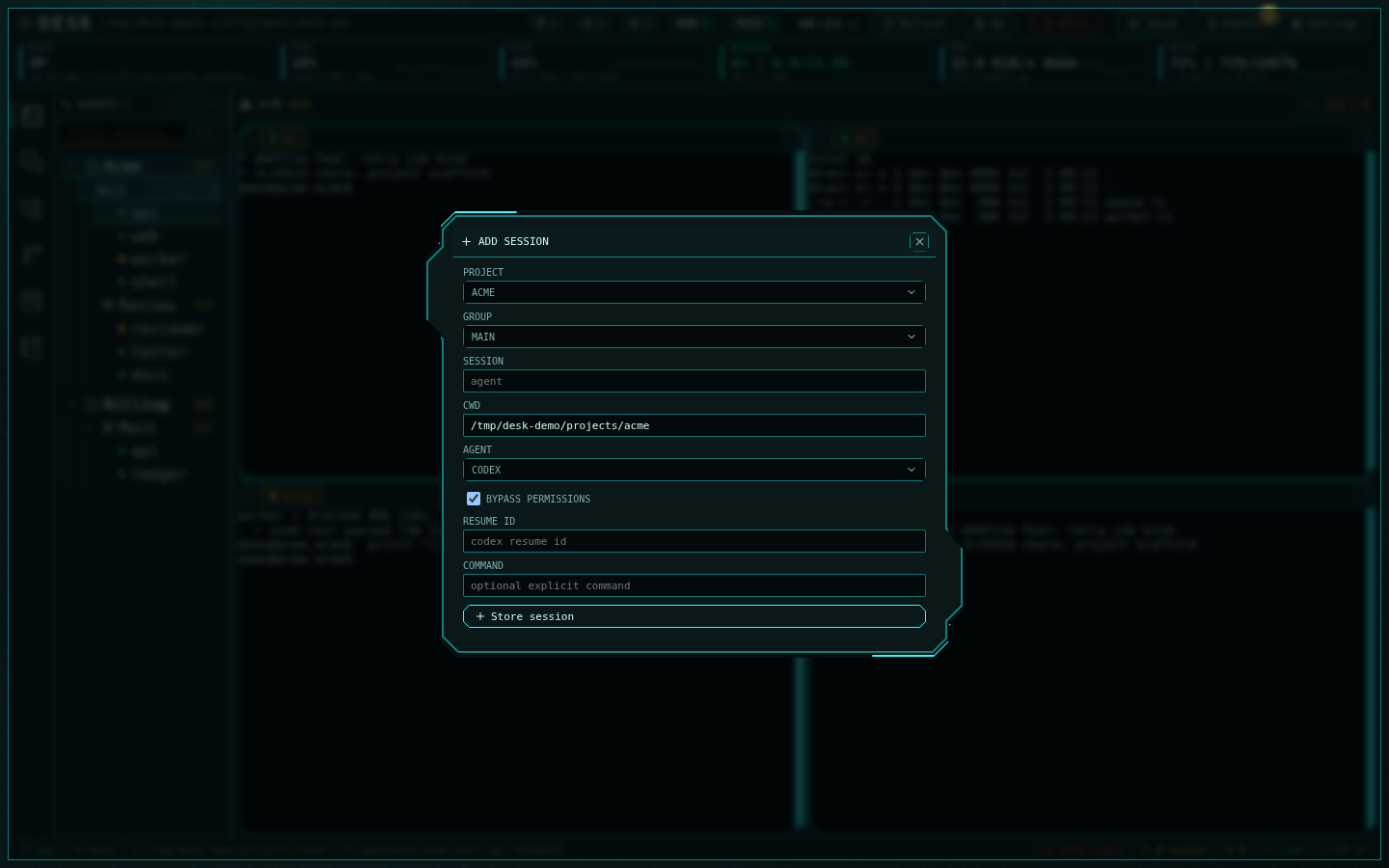 - **Agent** — `codex`, `claude`, `opencode`, `qwen`, `kimi`, `grok`, `bash`, or a custom command.
- **Profile** — which provider account the session runs under, for agents that
support it. `Ambient account` uses whatever the CLI is already logged into;
pick a named profile to run this session under a specific account. The **+**
beside the picker creates one without losing what you have typed here.
- **UI mode** — `terminal` (the CLI's own TUI, the default) or `native` (Desk's
chat surface, marked experimental). Native is offered only for the SDK-backed
agents (`codex`, `claude`, `opencode`); `qwen`, `kimi`, and `grok` are
terminal-only.
- **Bypass permissions** — for agent CLIs that support it, launches the
session with the agent's permission prompts disabled. Leave it off for
agents you want to approve actions interactively.
- **Resume** — paste a known conversation id to continue an existing agent
conversation; leave empty to start fresh (Desk captures the new id where
the agent CLI exposes one).
- **CWD** — inherited from the project unless you override it per session.
Sign each agent CLI in once before adding sessions. **Where** you sign in
depends on the session: one on the ambient account authenticates in a normal
terminal, while a session on a named profile signs in *inside that profile* —
the CLI writes its credentials to the profile's own directory, so an ambient
login does not carry over. See
[agent profiles](/configuration#agent-profiles).
## 4. Boot the fleet
Press **Up** in the header (or run `desk up`) to start every missing session.
Each session becomes a durable Moor session — closing the browser, dropping
the network, or restarting Desk never kills an agent. The RUN/MISS chips in
the header track fleet state live, and the MISS chip is itself a button that
boots whatever is down.
Individual cells have their own **Boot** overlay when a single session is
missing, and groups grow a boot-all action when some of their sessions are
down.
## 5. Organize as you grow
- Drag projects, groups, and sessions to reorder them; drag a session onto
another group to move it. Order persists to the manifest.
- The filter row narrows the tree by name; the bell chip filters to sessions
that need input.
- `Ctrl+K` jumps to any session by fuzzy name from anywhere in the agents
subsystem — attention-needing sessions rank first.
## Verify
```bash
desk status
```
Every configured session should show as running with its durable session id.
From here:
- [Choose the right layouts](/guide-multi-agent-layouts) for each group
- [Put the agents in a channel](/guide-channels-collaboration) so they can
coordinate
- [Watch events and attention](/guide-events-attention) instead of watching
terminals
- **Agent** — `codex`, `claude`, `opencode`, `qwen`, `kimi`, `grok`, `bash`, or a custom command.
- **Profile** — which provider account the session runs under, for agents that
support it. `Ambient account` uses whatever the CLI is already logged into;
pick a named profile to run this session under a specific account. The **+**
beside the picker creates one without losing what you have typed here.
- **UI mode** — `terminal` (the CLI's own TUI, the default) or `native` (Desk's
chat surface, marked experimental). Native is offered only for the SDK-backed
agents (`codex`, `claude`, `opencode`); `qwen`, `kimi`, and `grok` are
terminal-only.
- **Bypass permissions** — for agent CLIs that support it, launches the
session with the agent's permission prompts disabled. Leave it off for
agents you want to approve actions interactively.
- **Resume** — paste a known conversation id to continue an existing agent
conversation; leave empty to start fresh (Desk captures the new id where
the agent CLI exposes one).
- **CWD** — inherited from the project unless you override it per session.
Sign each agent CLI in once before adding sessions. **Where** you sign in
depends on the session: one on the ambient account authenticates in a normal
terminal, while a session on a named profile signs in *inside that profile* —
the CLI writes its credentials to the profile's own directory, so an ambient
login does not carry over. See
[agent profiles](/configuration#agent-profiles).
## 4. Boot the fleet
Press **Up** in the header (or run `desk up`) to start every missing session.
Each session becomes a durable Moor session — closing the browser, dropping
the network, or restarting Desk never kills an agent. The RUN/MISS chips in
the header track fleet state live, and the MISS chip is itself a button that
boots whatever is down.
Individual cells have their own **Boot** overlay when a single session is
missing, and groups grow a boot-all action when some of their sessions are
down.
## 5. Organize as you grow
- Drag projects, groups, and sessions to reorder them; drag a session onto
another group to move it. Order persists to the manifest.
- The filter row narrows the tree by name; the bell chip filters to sessions
that need input.
- `Ctrl+K` jumps to any session by fuzzy name from anywhere in the agents
subsystem — attention-needing sessions rank first.
## Verify
```bash
desk status
```
Every configured session should show as running with its durable session id.
From here:
- [Choose the right layouts](/guide-multi-agent-layouts) for each group
- [Put the agents in a channel](/guide-channels-collaboration) so they can
coordinate
- [Watch events and attention](/guide-events-attention) instead of watching
terminals