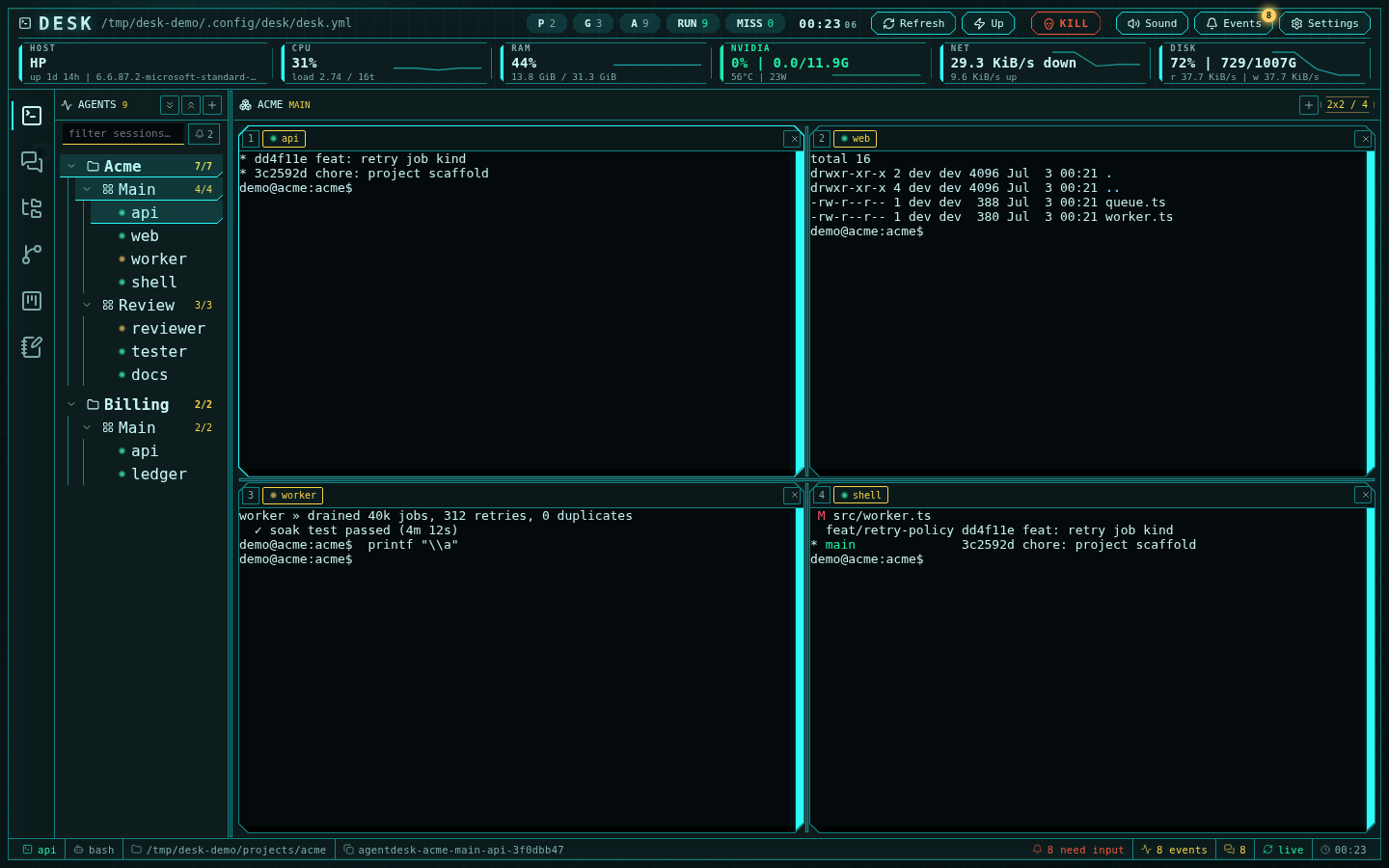
The finished workspace: two projects, a linear review lane selected, attention lamps live
~/.config/desk/desk.yml
directly — the configuration reference documents every key.
The UI writes the same manifest, atomically.
1. Create a project
A project gives Desk a named root directory that its groups and sessions inherit. In the agents sidebar, use the + button in the header and choose a project id, label, and working directory (for example~/projects/acme).
Repeat for a second project (billing) if you are following the full
scenario. Projects are the unit that the editor root, git discovery, and
channel handles organize around.
2. Add groups with layouts
Each project holds groups — one cell grid per group, where each cell is an agent chat or a terminal. Hover the project row and click Add group. Pick the layout in the form:2x2for a four-agent working set — the default choicelinearwith 3 cells for a review lane you want side by sidecustomwith up to 16 cells when the fixed grids do not fit
3. Add agent sessions
Hover a group row and click Add session: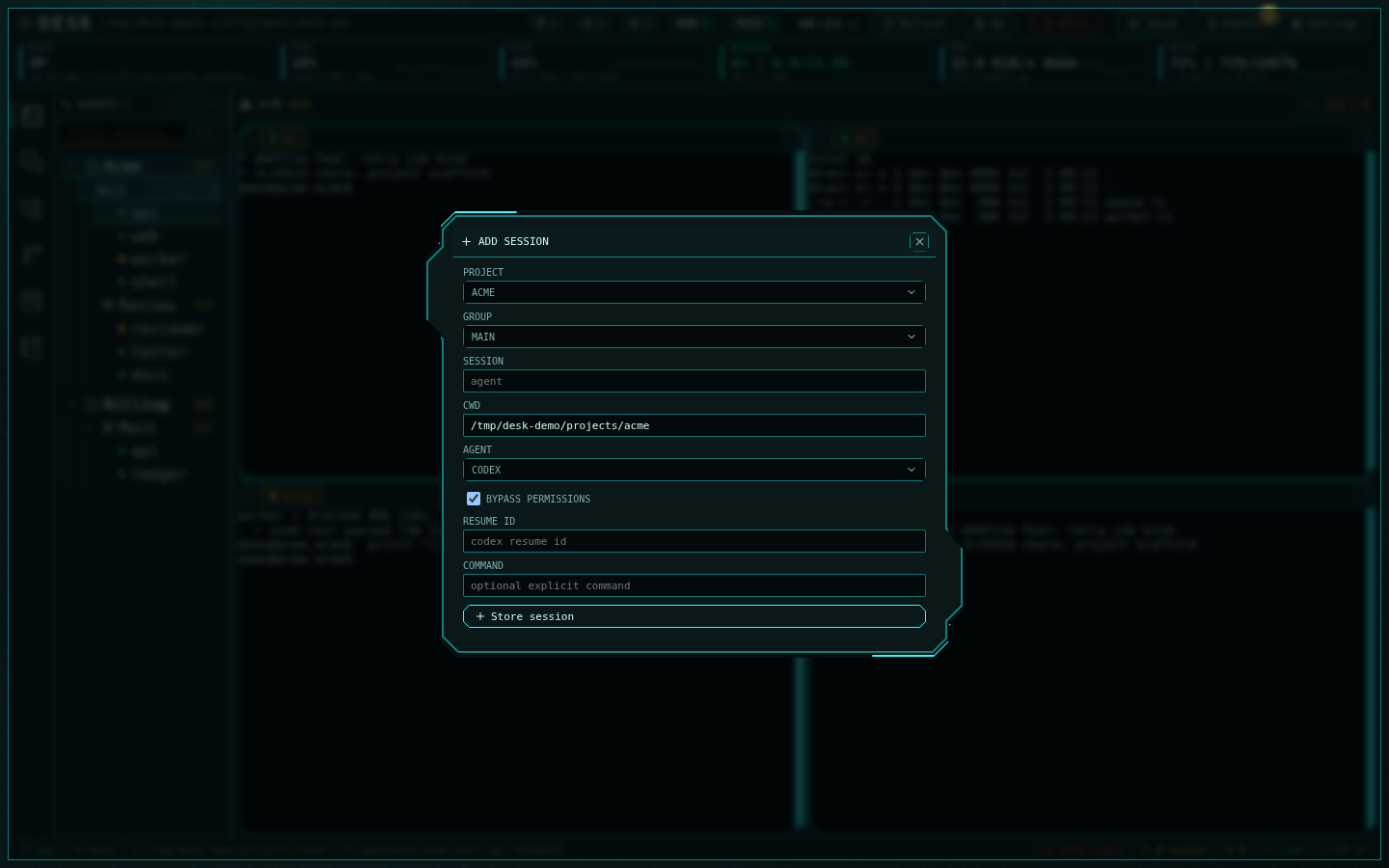
The Add session form: project, group, name, working directory, agent, permission bypass, resume id
- Agent —
codex,claude,opencode,qwen,kimi,grok,bash, or a custom command. - Profile — which provider account the session runs under, for agents that
support it.
Ambient accountuses whatever the CLI is already logged into; pick a named profile to run this session under a specific account. The + beside the picker creates one without losing what you have typed here. - UI mode —
terminal(the CLI’s own TUI, the default) ornative(Desk’s chat surface, marked experimental). Native is offered only for the SDK-backed agents (codex,claude,opencode);qwen,kimi, andgrokare terminal-only. - Bypass permissions — for agent CLIs that support it, launches the session with the agent’s permission prompts disabled. Leave it off for agents you want to approve actions interactively.
- Resume — paste a known conversation id to continue an existing agent conversation; leave empty to start fresh (Desk captures the new id where the agent CLI exposes one).
- CWD — inherited from the project unless you override it per session.
Sign each agent CLI in once before adding sessions. Where you sign in
depends on the session: one on the ambient account authenticates in a normal
terminal, while a session on a named profile signs in inside that profile —
the CLI writes its credentials to the profile’s own directory, so an ambient
login does not carry over. See
agent profiles.
4. Boot the fleet
Press Up in the header (or rundesk up) to start every missing session.
Each session becomes a durable Moor session — closing the browser, dropping
the network, or restarting Desk never kills an agent. The RUN/MISS chips in
the header track fleet state live, and the MISS chip is itself a button that
boots whatever is down.
Individual cells have their own Boot overlay when a single session is
missing, and groups grow a boot-all action when some of their sessions are
down.
5. Organize as you grow
- Drag projects, groups, and sessions to reorder them; drag a session onto another group to move it. Order persists to the manifest.
- The filter row narrows the tree by name; the bell chip filters to sessions that need input.
Ctrl+Kjumps to any session by fuzzy name from anywhere in the agents subsystem — attention-needing sessions rank first.
Verify
- Choose the right layouts for each group
- Put the agents in a channel so they can coordinate
- Watch events and attention instead of watching terminals